


New article
Recently updated
🛠️ Skills menu in Damstra Learning

📝 Summary
This article explains how trainees can view and add skills in Damstra Learning, depending on whether the Skills feature is enabled by their organisation. It also outlines how administrators manage skill availability and approval requirements.
📋 View your skills
Step 1: 🔓
Log in to Damstra Learning. If your organisation has enabled the Skills feature, you’ll see the Skills menu.
Step 2: 📅
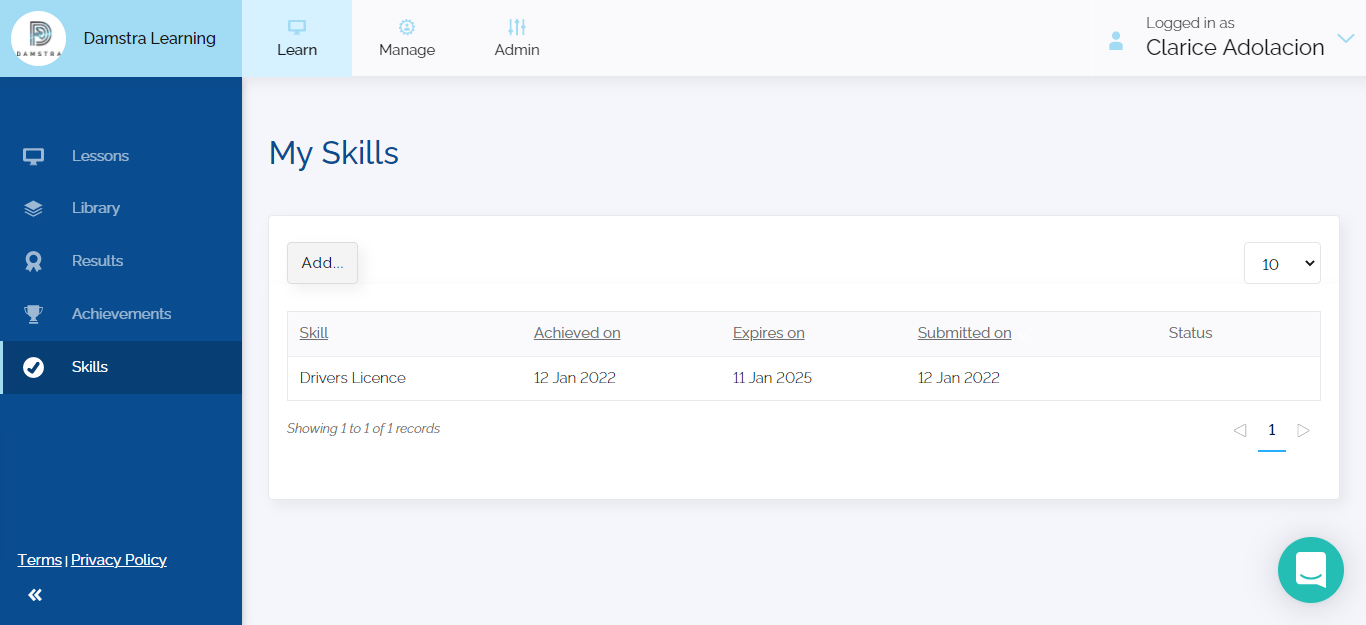
Open the Skills menu to view the My Skills page. Here, you can see:
- When a skill was achieved
- When it will expire
- When it was submitted
➕ Add a skill
Step 1: 🛠️
Go to the Skills menu and open the My Skills page.
Step 2: ➕
Click Add to begin adding a new skill.
Step 3: 📝
Fill in all required details as prompted.
Step 4: ✅
Click Submit to save the skill.
📌 Note: Some skills may require:
- Supporting evidence
- Supervisor approval
These requirements depend on how your administrator has configured the skill.
📣 Administrator notes
Administrators control:
- Which skills are available
- Which users or groups can add specific skills
If the skill you want to add isn’t listed, contact your administrator for assistance.
💡 Tips
- Make sure your account is active and your organisation has enabled the Skills feature.
- Prepare any required documents before submitting a skill.
📚 Related articles
- How to watch a scheduled lesson
- How to reset your password in Velpic Learn
- How to cancel a subscription