


New article
Recently updated
Using the KPI synchroniser

📘 Purpose
The KPI synchroniser is designed to capture records from an HR, payroll, or finance system and, using key data fields (site, date & hours), populate your Ideagen Workforce Safety Performance Indicators with the hours worked at each site by employees and contractors for each month.
The KPI hours imported are then seamlessly combined with your Ideagen Workforce Safety incident data to automatically generate the Lost Time Injury Frequency Rate (LTIFR) – a key industry performance measure.
Note: KPI Hours files are full files as each entry is a unique record and is not subject to future change.
⚙️ Configure Synchroniser
1️⃣ Log into the Ideagen Workforce Safety Database
-
Click the settings icon and select Settings.
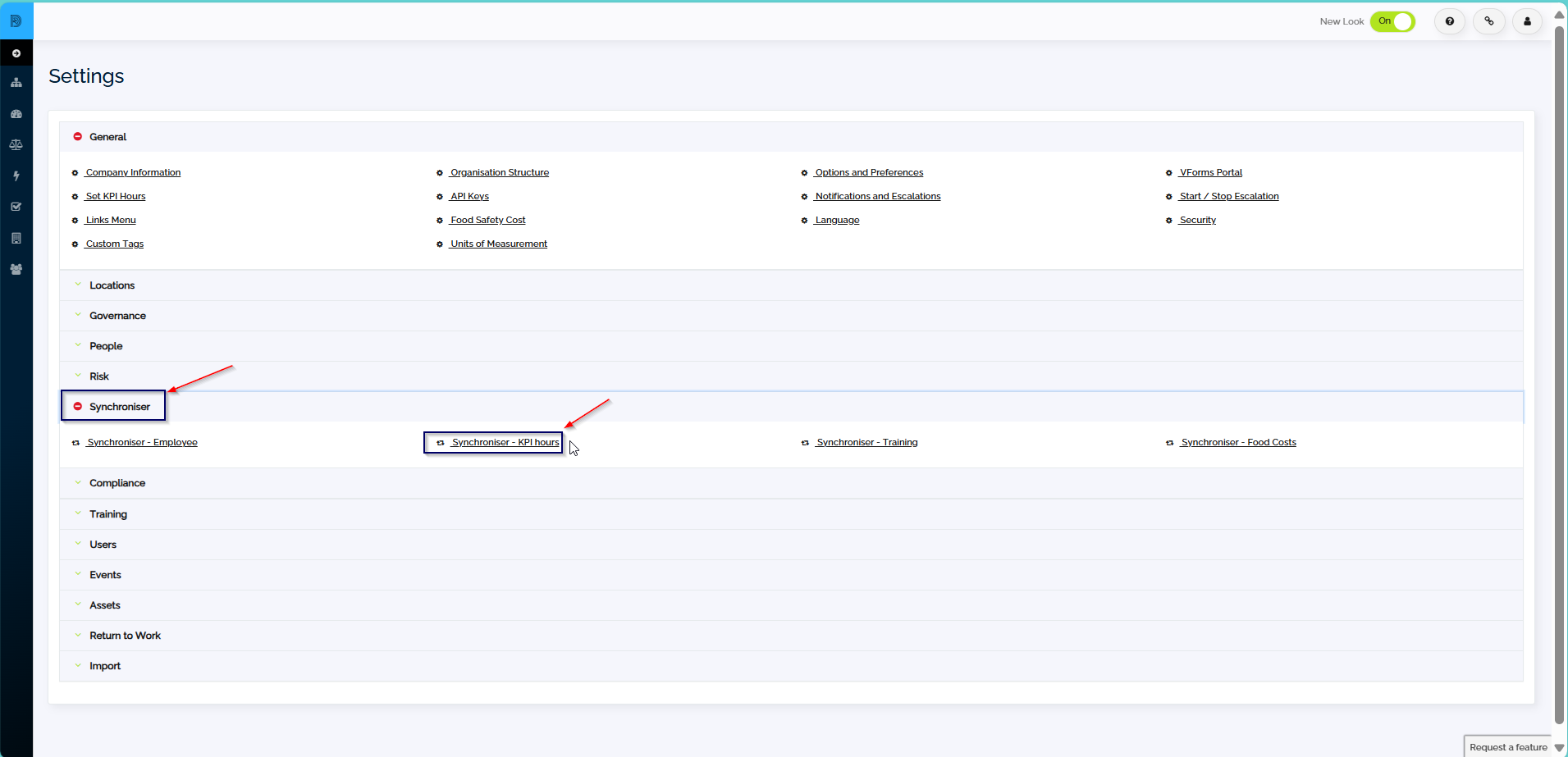
2️⃣ Select Synchroniser - KPI Hours from the Settings page
3️⃣ Determine KPI Hours Data to Import
-
From your master database (HR, Payroll).
-
Check the Hours Worked by Site data table below to ensure the required fields are supported by the synchroniser.
4️⃣ Extract KPI Hours Data
-
From your master database into a CSV file in the required format.
-
File Naming Rule: Must begin with
kpiand end with.csv
Example:kpi_31JUN2010.csv -
Save the CSV file in a known location in your network.
5️⃣ Enter Notification Email Address
-
This email address will receive synchroniser notifications.
-
You can set a unique email for each synchroniser function.
6️⃣ Notification Preferences
-
Choose whether to receive:
✅ Errors only
✅ Both errors and success notifications
7️⃣ Specify File Details
-
Number of columns in the CSV file
-
CSV Quote character
-
CSV separator
-
Whether the file contains a title row
8️⃣ Map the Columns
Match CSV file fields to the Ideagen Workforce Safety fields.
9️⃣ Save Your Settings
(Usually, these do not need to be changed once saved.)
🔟 Upload the File to FTP
-
FTP Host: ftp.platinumsafety.com
-
FTP Port: 21
-
FTP Username: YOURCOMPANYNAME
-
FTP Password: Provided upon subscription
-
Secure FTP Supported: Port 22
🛠 KPI Hours Data Configuration
For every mapped field, there must be an entry in the CSV file, even if the field is blank.
🚀 Activation
-
The scheduled task runs daily between midnight and 4 am (AEST).
-
If successful:
✅ Data is imported and the CSV file is deleted. -
If errors occur:
❌ Changes are rolled back, no data is changed, and the CSV file is deleted.
❌ A full list of errors is emailed to the nominated email address. -
Fix errors and resubmit a new file for the next synchronisation.
📊 Data Field Mappings
Refer to the Hours Worked by Site table for field details.
Hours worked by site data table
Required fields are indicated by Red bold text.
| Damstra Safety field name | Synchroniser Picklist fields | CSV format parameters (# of characters) |
| Site (by name) | Site (BY NAME) | Use Site by name if the site names in your CSV file match the site names in the Damstra Safety... |
| ...or...Site (by siteID) | Site (BY CODE) | ...otherwise use Site (BY NAME) |
| Hours Date | MONTH | 01/MM/YYYY (first day of the month which hours are to be entered against) |
| Employee Hours and/or.. | HOURS EMPLOYEE | Integer |
| ... Contractor Hours | HOURS CONTRACTOR | Integer |
The MONTH field in your CSV file should be in the format DD/MM/YYYY. The day should always be 01 followed by the month and year identifiers
e.g.
01/07/2010 = KPI Hours for July 2010 01/08/2010 = KPI Hours for August 2010 01/09/2010 = KPI Hours for September 2010 etc.
❓ FAQ’s KPI Hours
Q. What happens if my CSV file has some hours records missing for some entries?
A. The synchroniser will not update the hours for those sites for that month – this will distort the Performance Indicators (LTIF) results automatically generated in Ideagen Workforce Safety for the missing periods.
Note: The hours can be uploaded manually in Ideagen Workforce Safety after synchronisation if required.
Q. What happens if my CSV file has some sites or dates records missing for some entries?
A. Synchroniser will error – you need to correct the data and rerun the synchroniser.
Q. How do I change some historical hours which have already been synced and displayed in Ideagen Workforce Safety?
A. You can set up and manually run a new CSV file with the correct data which will overwrite the previous records.
Note: This will change the Performance Indicators (LTIF) data if the incorrect hours are significant.
Q. Do I need to do an Ideagen Workforce Safety database backup?
A. No. The Ideagen Workforce Safety Cloud service does a daily backup of your data on your behalf.