


New article
Recently updated
How to add a global policy for all users in TIKS Assure Visitor Management Portal

Who is this article for?Site administrators or compliance managers who need to apply a single policy across all sites and user types.
Admin access to the dashboard and policy upload permissions are required.
Summary: This article explains how to upload a global policy document in the TIKS Assure Visitor Management Portal. Once uploaded, the policy will be shown to all users during sign-in at every site.
Steps
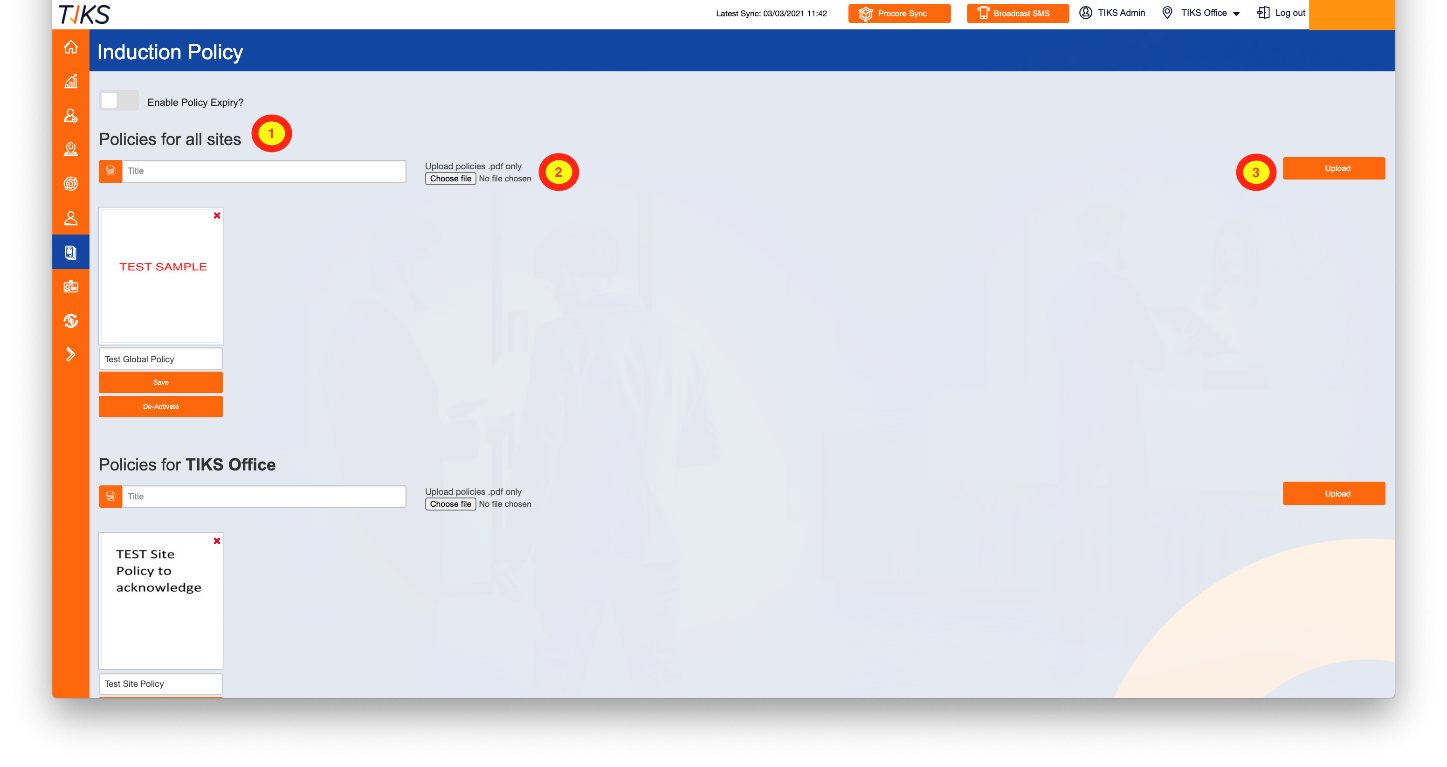
Step 1: Access the global policy settings
From the dashboard, click Policies for all sites.
Step 2: Add the policy title
Type the title of the policy in the provided field.
Step 3: Upload the policy file
Click Choose file to select the PDF document you want users to read and acknowledge.
Step 4: Confirm upload
Click Upload to add the policy to the system.
Once uploaded, the policy will appear in the list below and will be presented to all users during sign-in at any site.
Tips
- Ensure the policy file is in PDF format and clearly labeled.
- Use concise titles that reflect the policy’s purpose (e.g., “Site Safety Guidelines”).
- Test the sign-in flow to confirm the policy appears as expected.
Related articles
(List any related articles here, if available)