


New article
Recently updated
Understanding dashboard tiles in the TIKS Assure Visitor Management Portal

Who is this article for?
Portal users who need to manage site access, visitor records, and system settings efficiently.
Admin or elevated access and dashboard permissions are required.
Summary: This article explains the purpose of each dashboard tile in the TIKS Assure Visitor Management Portal. It helps users understand how to navigate the portal and use its features based on their access level.
Details
What it is:
The dashboard in the TIKS Assure Visitor Management Portal displays colored tiles that represent different sections of the system. Each tile provides quick access to a specific feature or function.
Why it matters:
Knowing what each tile does allows users to navigate the portal more efficiently and perform tasks related to visitor management and system administration.
Key points
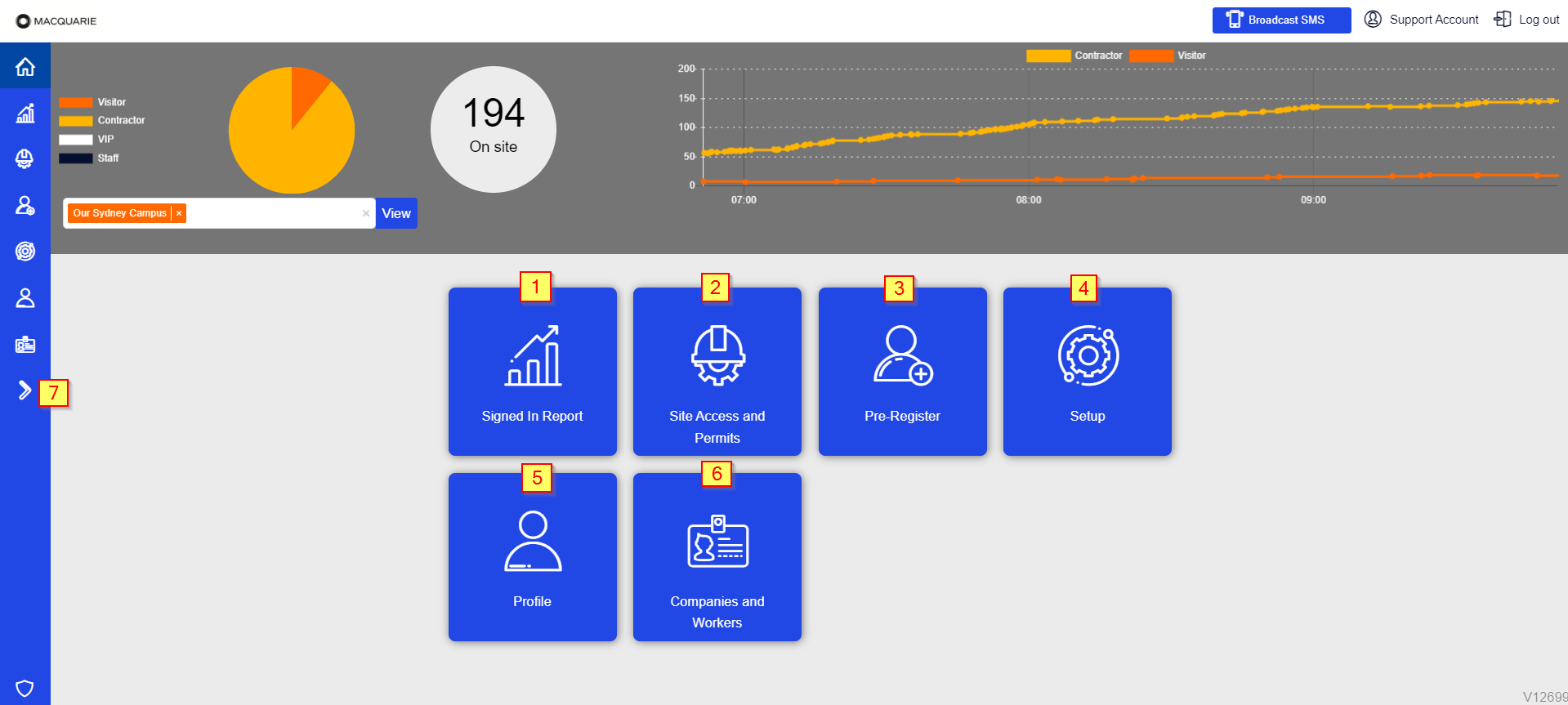
- Signed In Report
View a report of all visitors currently signed into the site. - Site Access and Permits
Check who has site access and view active permits. - Pre-Register
Pre-register visitors before they arrive on site. - Setup
Access system configuration tiles including:- System Users
- Workflows
- Theming
- Forms
- Accounts
- Compliance Record
Review compliance-related records. - Profile
View and edit your account details. - Companies and Workers
View all registered companies and their associated workers. - Miniature Tile Menu
Use the compact tile menu on the left-hand side of the screen for quick navigation.
Important:
Tile availability may vary depending on your portal setup and user permissions. To request additional tiles or inquire about available options, contact your TIKS Account Manager.
FAQs
Why don’t I see all the tiles listed?
Your access depends on your permission level. Some tiles may be hidden based on your role.
Can I request additional tiles?
Yes, contact your TIKS Account Manager to inquire about adding more tiles to your portal.
Related Articles:
- ***