


New article
Recently updated
Accessing and using the employee profile page

Who is this article for?
Users responsible for managing users.
Level 1-3 permissions are required.
The employee profile page provides a centralised view of employee data for users with access to specific worksites, streamlining access to key information such as skills, mobilisations, and health and safety records.
Accessing the page
To access the employee profile page:
- Go to Workforce Management.
- Use Employee Search to find a user (alternatively, you can use the Quick Search function).
- Click the user to open their profile.
You will be taken to a new page where you can view and manage employee details.
Understanding the Summary section
The Summary section provides a quick overview of important employee information and alerts, tailored to the user's access level and custom permissions.
Alert message banner
Banners show alerts relevant to the employee and are displayed at the top of the page.
Depending on your level of permissions, you will be able to view the following banners:
- Banned from the worksite(s) - Indicates the employee is banned, including the duration (e.g., until a specific date or indefinitely). The employee cannot access the system until the ban is lifted
- Deactivated profile - Indicates the employee's profile is inactive and access to the system is disabled

- Linked profile - Shows that the employee's profile is linked to another profile in the system. Fatigue-related alerts will consider data from both profiles

- Login alert - Displays the employee's login activity, including date and time

Employee details
This section displays the following information:
- Profile photo
- Full name and preferred name (in parentheses)
- ID
- Badge (if the employee is permanent)
- Unique Student Identifier (USID) (if applicable)
- Assigned crews
- Access cards printed
- Registered company name
- Subcontractors
- Company branches
Using the More menu
Located in the top-right corner of the profile page, this dropdown menu allows you to perform additional actions and view more information based on your level of permissions.
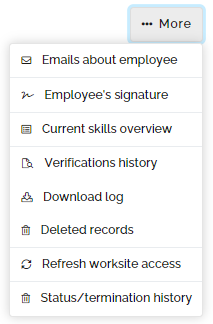
You can learn more about each option in our article on using the More menu on the Employee profile page.