New article
Recently updated
Setting up alerts for forms meeting specific criteria

Who is this article for?
Administrator who want set up alerts that trigger when your forms meet set criteria.
Administrator permission are required.
Alerts in Ideagen Workforce Safety Forms allow you to receive automatic email notifications when your forms meet rules you have set, such as informing safety officers about injury reports, notifying payroll about completed timesheets, or alerting quality officers about failed vehicle inspections.
Accessing alerts
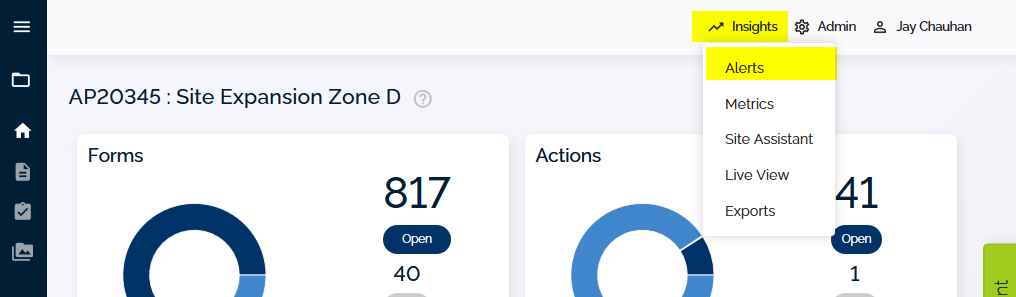
To access alerts:
- Go to the Insights menu at the top right corner of your screen.
Note: You must be a Super user to use Alerts.
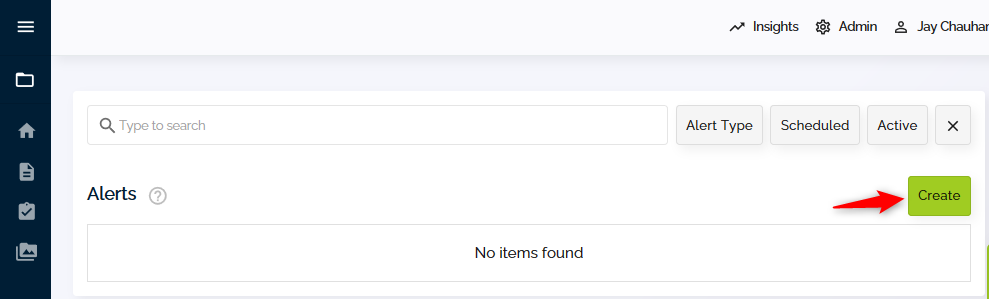
- Click Create to start setting up a new alert.
Configuring alert details
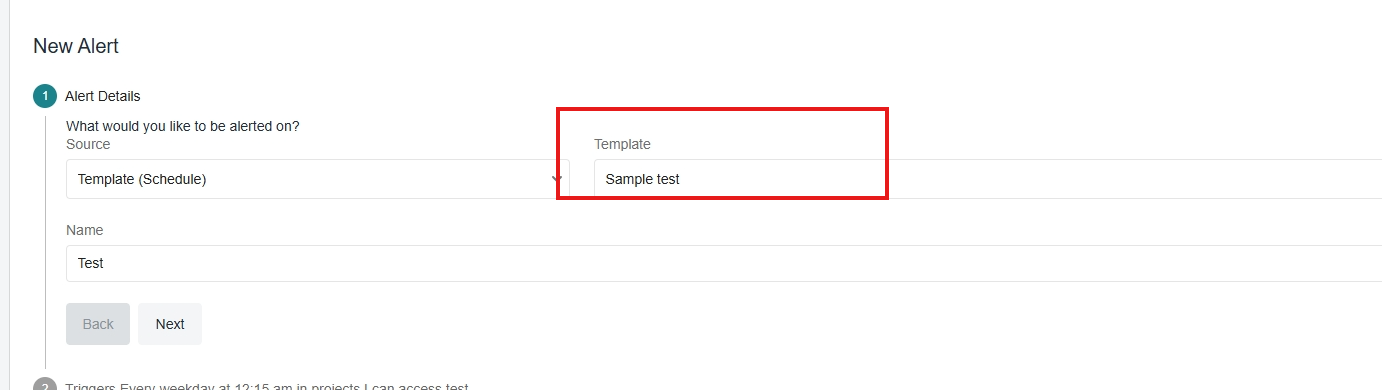
On the New Alert screen, you can select the following options:
- Source – choose whether the alert triggers on an Event (such as a new form meeting certain criteria) or a Scheduled time (check for trigger items at a certain time each day or week)
- Choose a Template – select the form type for this alert (such as Corrective Actions or Timesheets)
- Name the Alert – this appears in your Alert Register and only you will see it
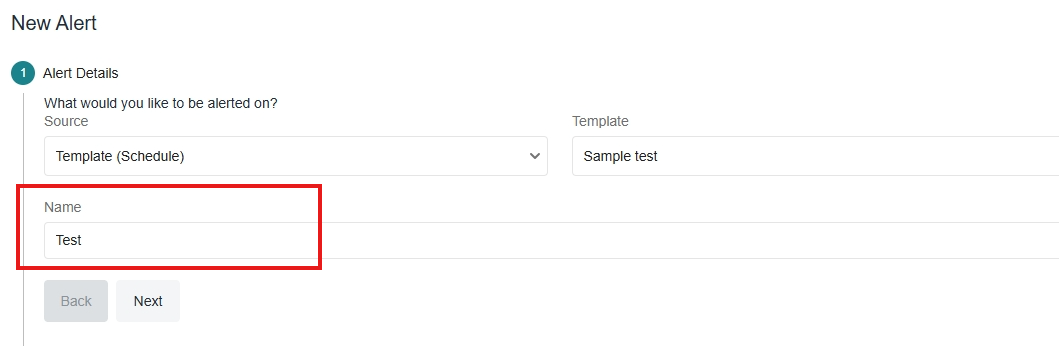
For example, to send an email each time a new Defect is saved to project (not as a draft) and is associated with a particular Company for actioning, choose your template from the list and name your alert.
Setting up triggers
Choose the trigger criteria that determine what needs to be in the form to trigger the alert.
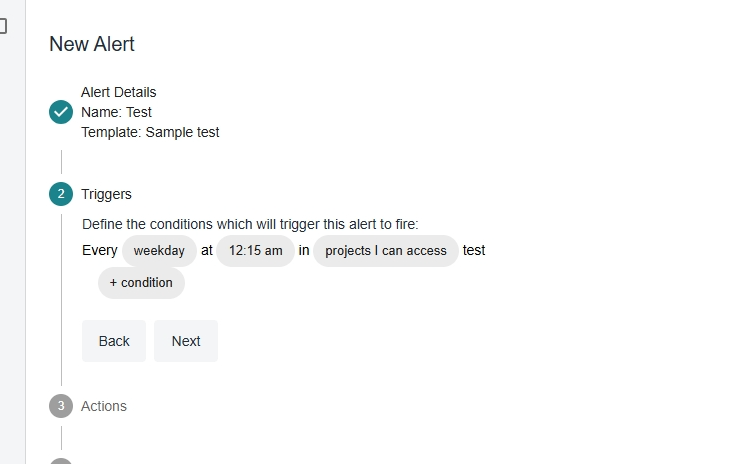
For Scheduled Alerts:
Select the days of the week and time you would like the trigger to run.
For Event Alerts:
Choose an event to determine when the trigger runs (each time a form, memo, or action is saved to draft, saved to project, updated, or closed).
Available trigger conditions:
- Projects – select specific projects or all projects you have access to
- [field] is [equal to] [0] – check number fields using comparison rules (equal to, not equal to, greater than, less than, greater than or equal to, less than or equal to). For example, alert when the Priority field equals 1 or is greater than 5
- [field] is [equal to] [field] – compare one field to another
- [field] is [equal to] [text] – check for a particular field that contains, starts with, or equals (or does not) a string of text
- status is [Open] – check for any forms, memos, or actions with one or more statuses
- [date field] is [overdue by] [7 days] – check date fields to see if the form, memo, or action contains a date that is X days in the future (due in) or X days in the past (overdue by)
Example:
To trigger an alert for a Defect that is saved to project (not drafted or closed) where the Action Company field contains the text "ABC Co.":
- Set the event to Saved to Project
- Add a condition where Action Company contains ABC Co.
Note: You can always click the Back button to return to the previous set of options in the Alert builder.
Defining actions
To define what happens when the trigger criteria are met:
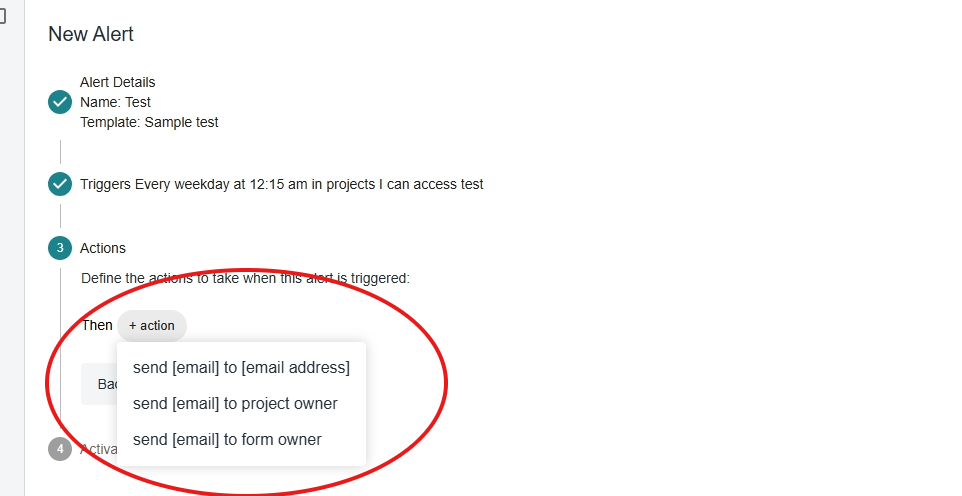
- Choose who receives the email notification.
You can send an email to:
- A specific email address
- The project owner (defined on each specific project)
- The form owner (typically the user who created the form, but can be changed)
Use the + button to add multiple recipients.
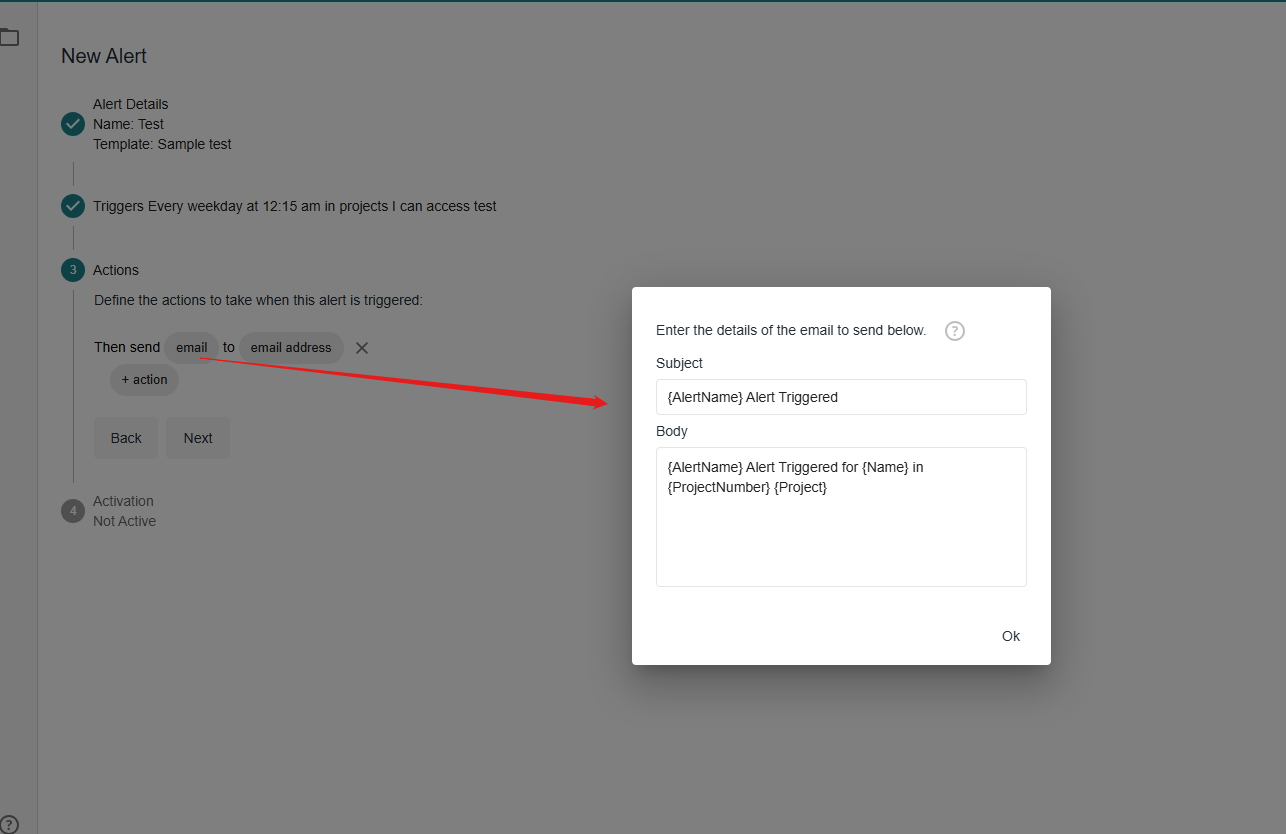
To customise the email content:
- Click the Email button.
- Define the text for the body and subject of the emailed alert using predefined parameters.
You can include elements such as a link to the form or PDF in the alert email for the convenience of the recipient.
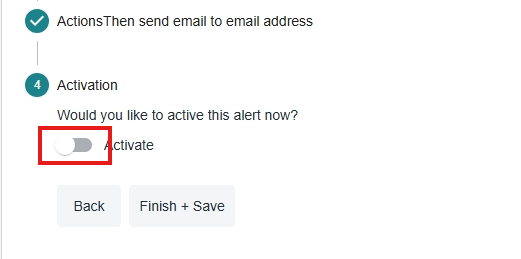
- Click Activate and Save to start receiving emails each time a form meets your defined criteria.
Managing existing alerts
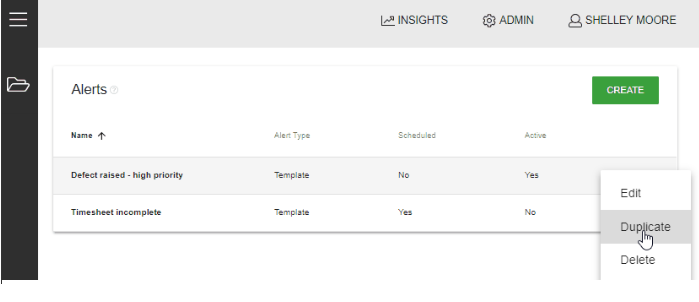
You can manage your alerts from the Alerts screen by selecting an alert from the list.
Available options:
- Edit – modify your existing alert settings
- Delete – remove alerts you no longer need
- Duplicate – create a similar alert based on an existing one
- Deactivate – temporarily turn off alert emails in Step 4 (Activation) whilst keeping the alert configuration for future use