


New article
Recently updated
Scheduling a health and safety session in IWS

Who is this article for?
Administrators that needs to schedule a Health & Safety session.
Worksite access permissions are required.
This article explains how to schedule a health and safety session using the Health & Safety Calendar in Workforce Management, including configuring session details, recurrence, location, capacity, and skills.
Accessing the Health & Safety Calendar
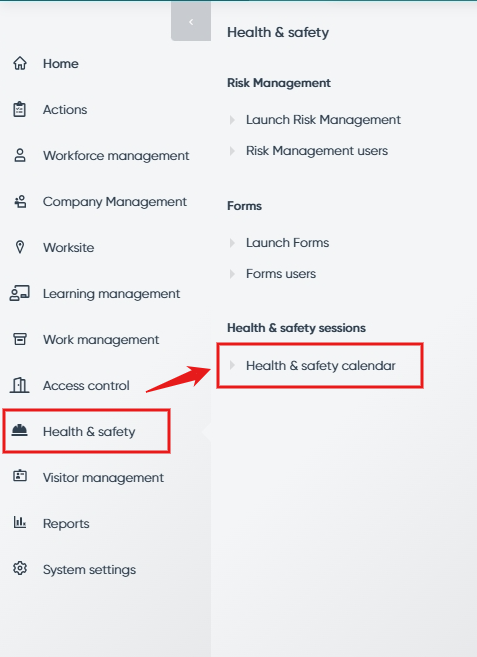
To access the scheduling form:
- Go to Health & Safety Calendar from the left-hand navigation menu.
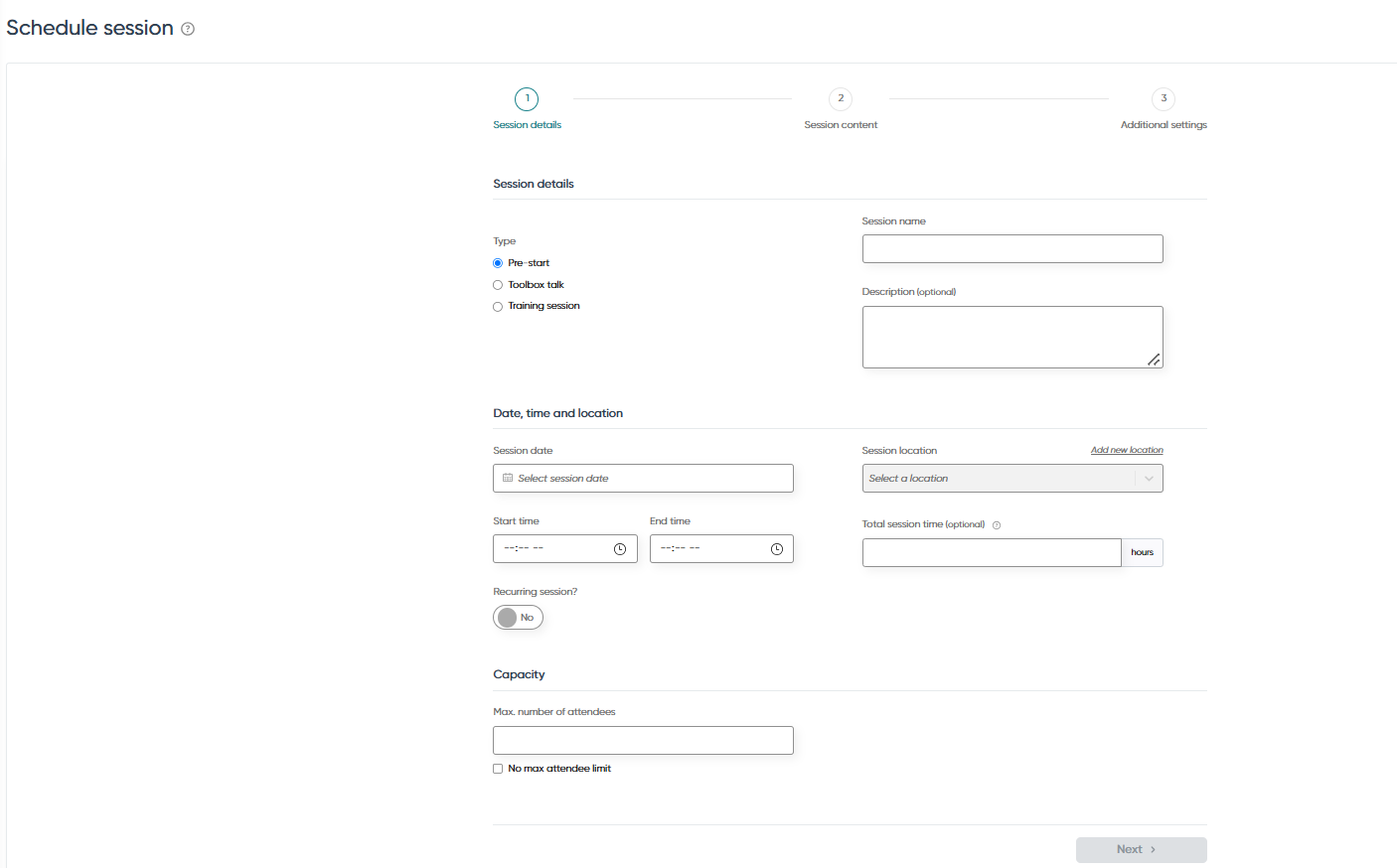
- Click the Schedule Session button at the top of the screen.

Configuring schedule and session details
To configure the session:
- In the Schedule & Session section, select the Type: Pre-start, Toolbox Talk, or Training Session.
- Enter a Session Name to provide a brief title.
- Add a detailed Description of the session.
Additional settings:
- Manage via mobile app: Allow all worksite members to manage the session in the mobile app
- Book via public website: Enable public booking through the Ideagen Workforce Safety website
- Enable competency rating: Allow marking attendees as Competent or Not Yet Competent after the session
Setting date, time, and location
To set the session timing and location:
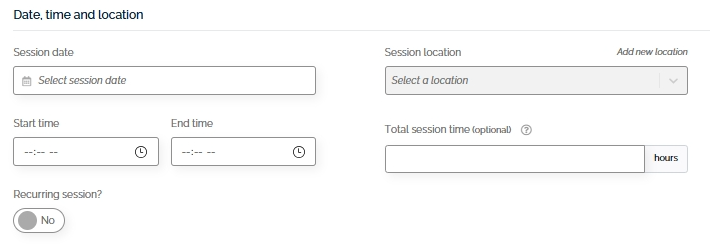
- In the Date, Time & Location section, choose the Session Date.
- Enter the Start and End Time.
- Set the Recurrence frequency and end date for recurring sessions.
- Specify the Total Session Time (excluding breaks).
- Enter the Location if needed.
Note: Recurring sessions are saved individually. You must edit each session separately.
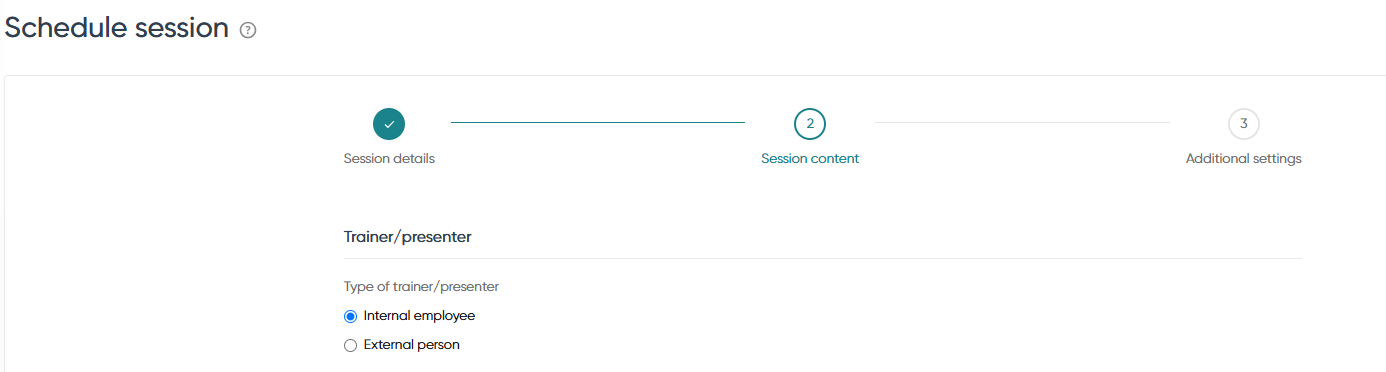
Assigning a trainer or presenter
To assign a trainer:
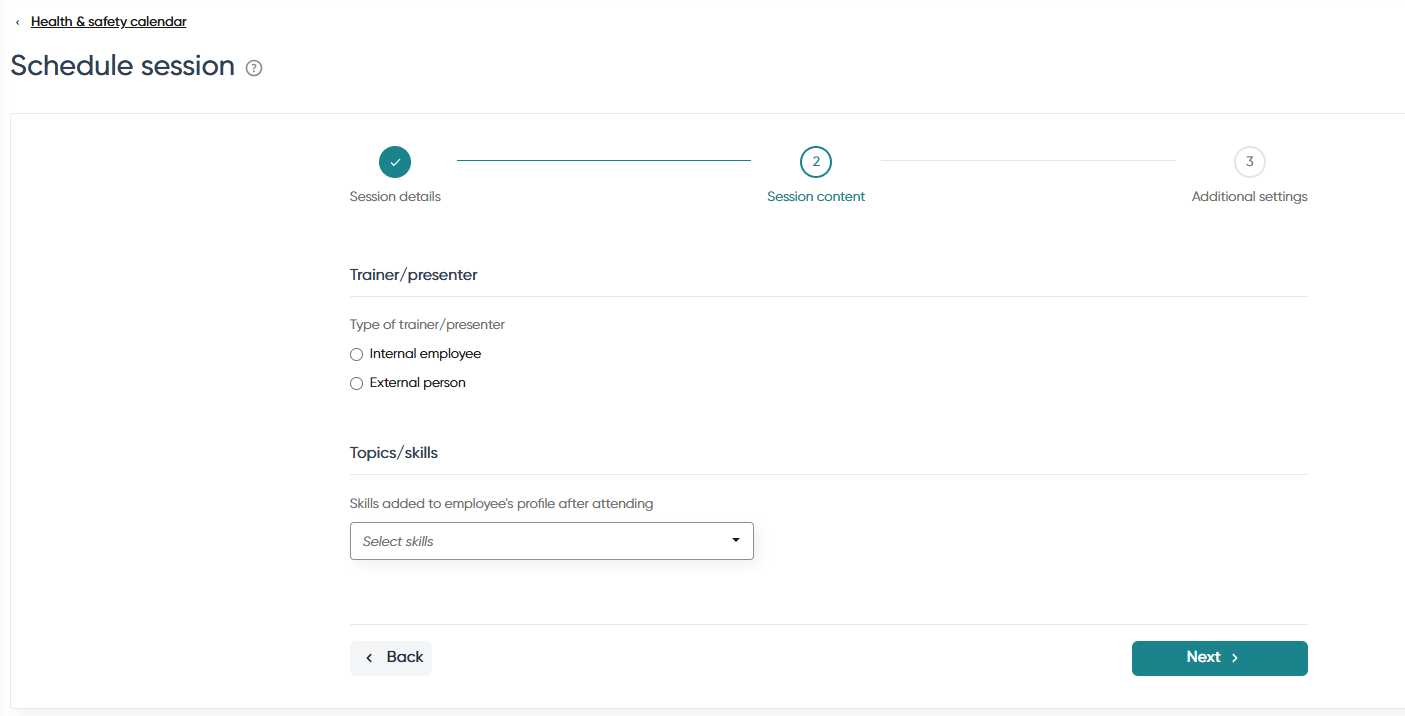
- In the Trainer/Presenter section, select Internal Employee and choose from the dropdown for internal trainers.
- Alternatively, select External Person and enter their name manually for external trainers.
Setting session capacity
To set the capacity:
- In the Capacity section, enter the Maximum Number of Attendees.
- Alternatively, select No Max Attendee Limit.
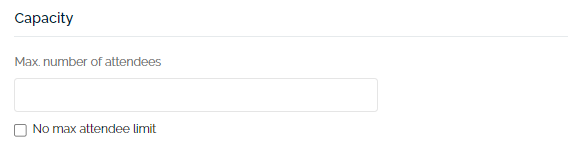
You can adjust capacity later if needed.
Adding topics and skills
To add skills to the session:
- In the Topics & Skills section, select one or more Skills to be added to attendees' profiles upon completion.
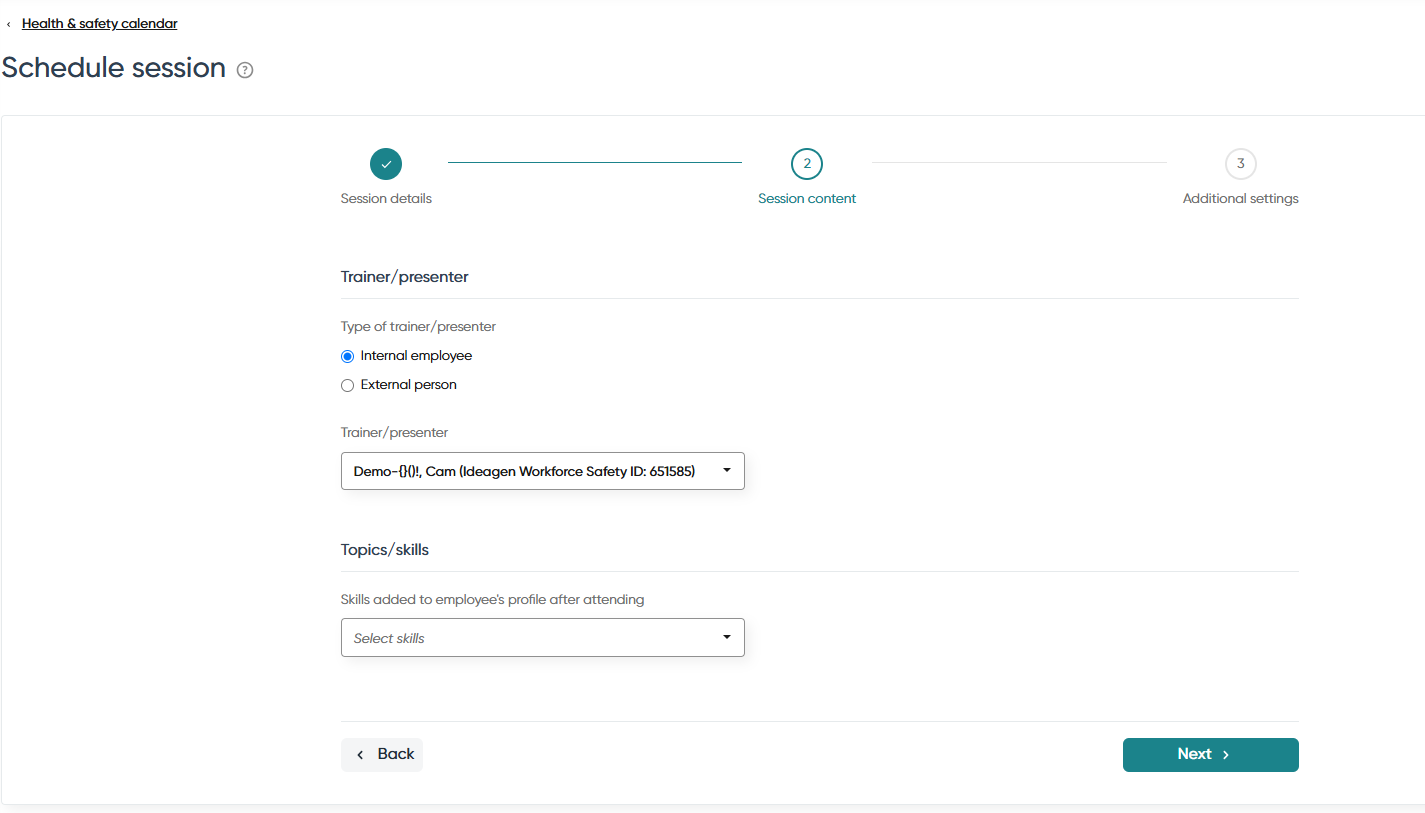
After saving, you can manage topics and skills in the Topics/Skills tab, including uploading related documents.
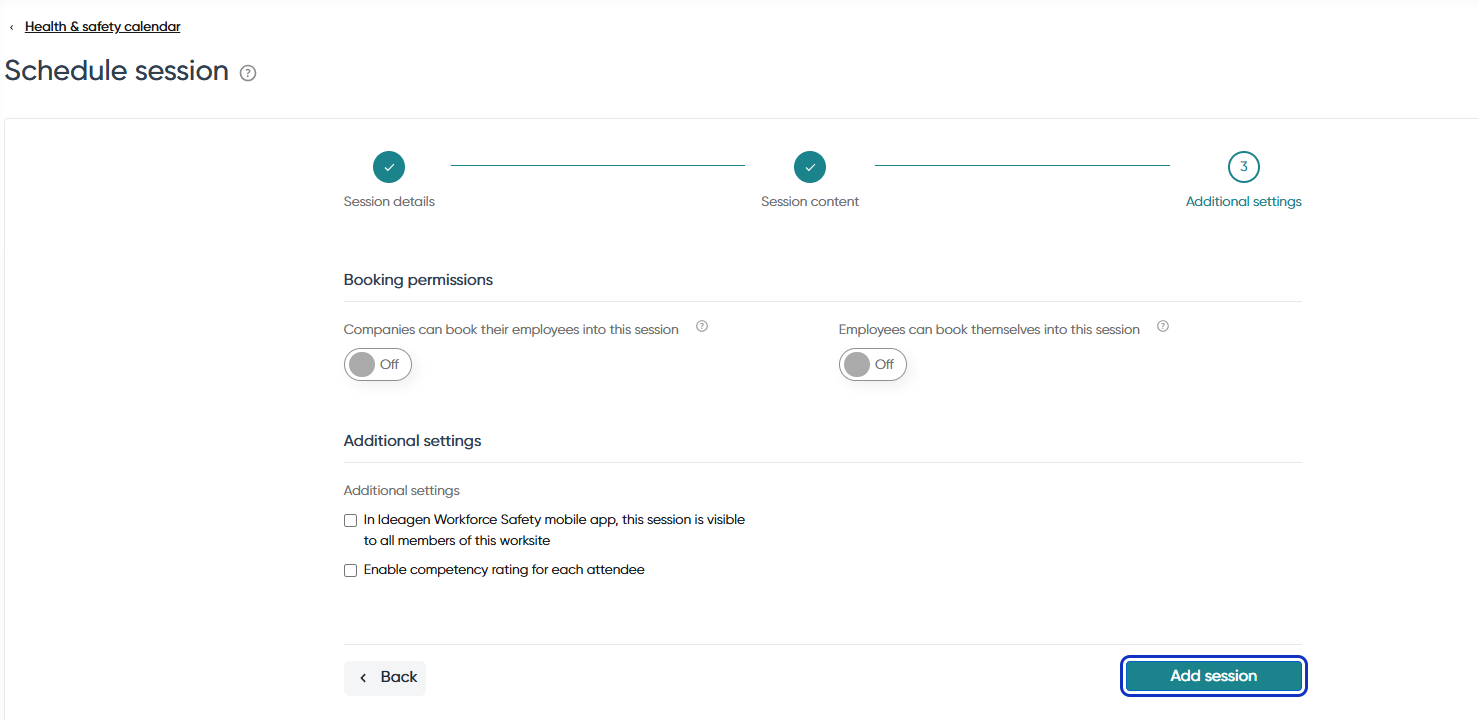
Finalising and saving the session
To save the session:
- Click the Add Session button at the bottom of the screen.
Tips:
- Use recurrence for ongoing training programmes
- Enable mobile app management for flexibility in tracking attendance
- Assign skills to ensure training outcomes are recorded on employee profiles