


New article
Recently updated
Sharing self-service reports in IWS

Who is this article for?
Report owners who want to share self-service reports and manage permissions.
Report owner access is required.
This article explains how to share self-service reports with individual users or groups in your organisation and how to manage report permissions.
Understanding report sharing
Self-service reports can be shared with other users and groups within your organisation.
When sharing a report, you can control whether recipients can:
- View the report
- Edit the report
- Delete the report
Note: Only users with Creator access can share reports.
Opening the Reports library
To access report sharing:
- Select Library from the left-hand navigation menu.
- Select the Reports tab.
The Reports tab contains all self-service reports you have access to.
Accessing the Share Report window
To begin sharing a report:
- Select Share Report next to Create Report.
- Locate the report you want to share.
- Select Share.
The Share Report window displays reports that you have permission to edit.
Note: Reports shared with you as read-only are not available for sharing.
Finding a report to share
The Share Report window includes the following options:
- Search bar to find reports by name, author, or date
- Report list showing available reports
- Share button to open sharing settings for a report
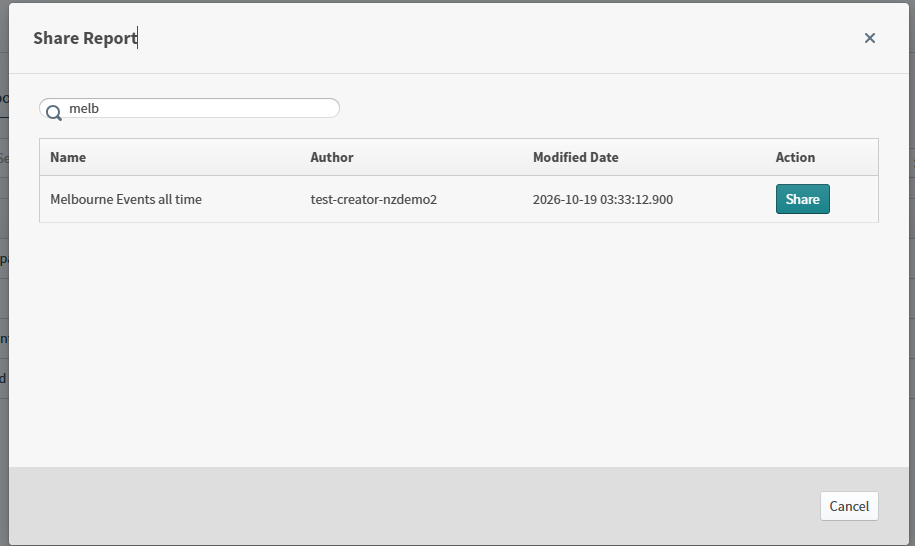
If you do not have edit access to any reports, the report list will be empty.
Adding users and groups
You can share reports with users or groups within your organisation.
To add recipients:
- Select Add.
- Choose either Groups or Users.
- Select one or more recipients.
- Select Apply.
When selecting recipients:
- Existing recipients are displayed as already selected
- Only users and groups from your organisation are available
- The Apply button remains unavailable until at least one recipient is selected
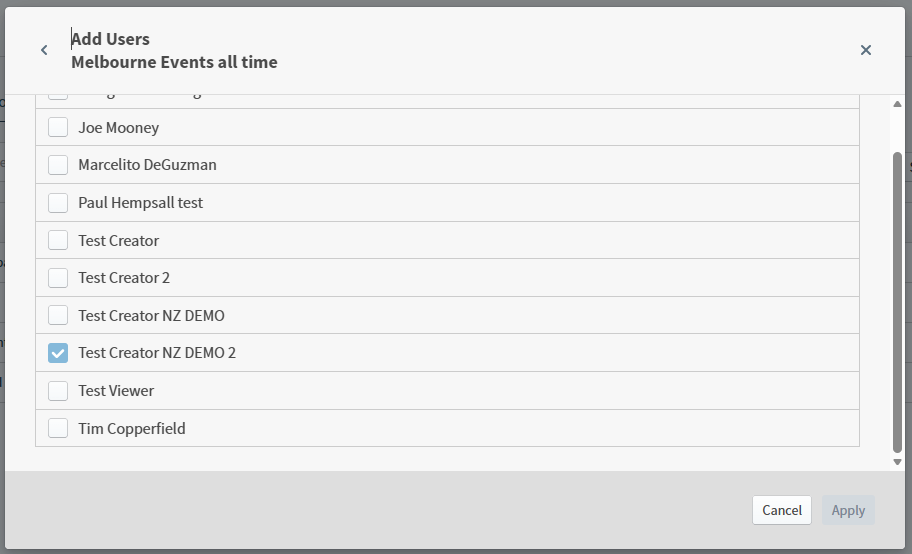
Select Cancel or the back arrow to exit without making changes.
Managing report permissions
After adding recipients, you can assign permissions for each user or group.
Available permissions are:
- Read allows users to view the report
- Write allows users to edit the report and share it with others
- Delete allows users to remove the report
To remove access:
- Clear all assigned permissions for the user or group.
- Or select the trash icon beside their name.
- Select Save to apply your changes.
Note: Changes are not applied until you select Save. Closing the window before saving discards all changes.
Confirming successful sharing
After saving, a confirmation message is displayed:
Permissions have been updated successfully.
The sharing window then closes automatically.
Unlike dashboards, reports do not contain child visuals. Because of this, you are not prompted to update permissions for additional content.
Understanding report access levels
Users with Read permission can open and view reports but cannot:
- Share reports
- Edit reports
- Delete reports
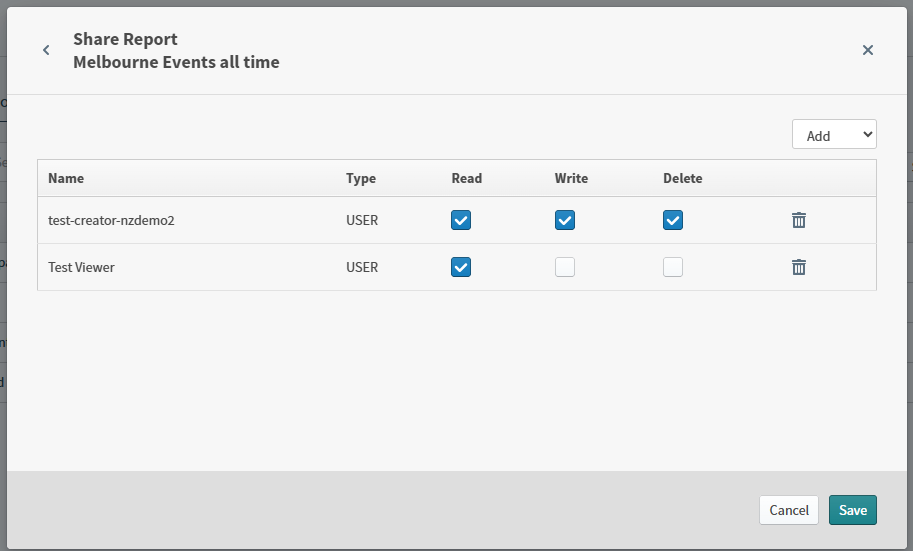
Users with Write permission can modify reports and share them with other users.
Tips for sharing reports
- Share reports before scheduling them to ensure recipients can access the content
- Use groups when granting access to multiple users
- Limit Write access to users responsible for maintaining report content