


New article
Recently updated
Exporting a self-service report to a PDF

Who is this article for?
Report owners who need to export a self-service report to PDF.
Creator or owner access and an existing self-service report is required.
Export a self-service report to PDF with customisable page size, orientation, column count, and font size, with a preview before exporting.
Opening the report
To open the report:
- Open the report.
Exporting to PDF
To export the report as a PDF:
- Select the export icon.
- Select PDF.
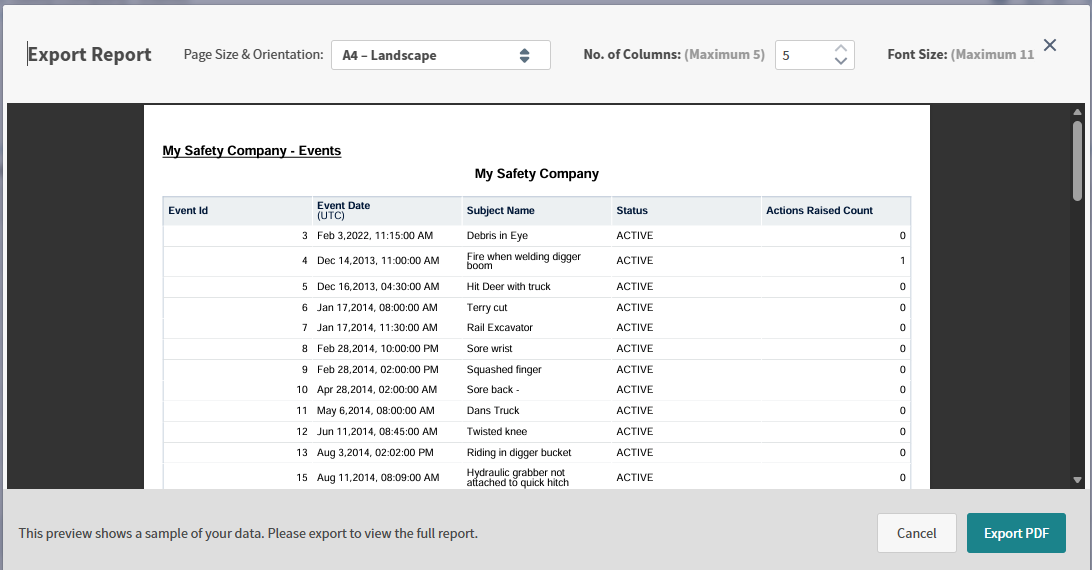
A preview of the report opens.
Configuring page size and orientation
To configure the page layout:
- In Page Size & Orientation, choose a layout.
The following page sizes and orientations are available:
| Page size | Portrait | Landscape |
|---|---|---|
| US Letter | Yes (default) | Yes |
| A4 | Yes | Yes |
| A3 | Yes | Yes |
The default is US Letter, portrait. Landscape fits more columns on a page.
In the preview these appear as a page size list and an orientation list.
Configuring columns and font size
To choose the export display settings:
- Choose how many columns to include and the font size.
The largest number of columns and the largest font size you can choose depend on the page size and orientation you selected.
Previewing and exporting the PDF
To preview and export the PDF:
- Check the preview.
- Select Export PDF.
- Select Cancel to go back to the report.
Tip: If columns are cut off, choose a larger page size or landscape orientation, or include fewer columns.
Tip: The export includes the header and footer you set up in the report.