


New article
Recently updated
Understanding Insights Dashboard Library in IWS

Who is this article for?
Dashboard Users and Report Creators who need to access, manage, search, filter, and schedule dashboards in Insights.
Creator privileges required for dashboard creation and scheduling.
The Dashboard Library is the central workspace where you can view, manage, and interact with dashboards you have access to, supporting dashboard creation, filtering, searching, and scheduling.
Accessing the Dashboard Library
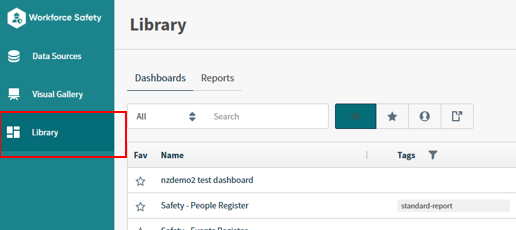
To access the Dashboard Library:
- Select Library in the left-hand main menu.
- Select the Dashboards tab.
Dashboards appear in a list format.
Note: The Library also has a Reports tab next to Dashboards. Use the Reports tab to work with your self-service reports.

Searching and filtering dashboards
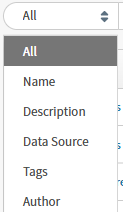
To search for dashboards:
- Use the search bar to find dashboards by author, name, type, or description.
- For advanced searches, use special characters:
&or:for AND conditions|for OR conditions- Example:
name:safety & author:chris
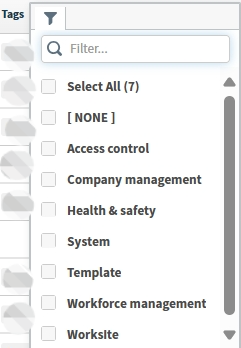
You can also use built-in filters or content tags to narrow results.
Using Dashboard Library buttons
The Dashboard Library provides several buttons to help you manage your view:

Clears filters and displays all dashboards

Shows only favourite dashboards

Displays dashboards you created

Displays dashboards shared with you

Allows users with Creator privileges to create a new dashboard
Understanding dashboard list columns
The dashboard list displays the following columns:
- Fav – Star icon indicates favourites. Click to add or remove from favourites
- Name – Dashboard name
Tags – Tags assigned to the dashboard. Use the filter icon to search by tag
- Data Source – Data source used by the dashboard
- Author – Creator of the dashboard
- Date Modified – Last modified date
- Schedule – Click the clock icon to schedule reports (Creator users only)
- Actions – Click the bin icon to delete a dashboard (if permitted)
Resizing columns
To resize a column:
- Drag the border between two column headings to make a column wider or narrower.
Important: Column widths are not saved. They return to the default when you leave the page. There is no option to resize all columns automatically.
Sorting dashboards
To sort dashboards:
- Click a column title to sort by that column.
- Click again to reverse the sort order.
Default sorting is alphabetical by dashboard name.
Frequently asked questions
Can I search by multiple criteria?
Yes, use advanced search syntax like name:safety & author:chris.
Can I create a dashboard?
Yes, if you have Creator privileges, use the Create Dashboard button.
Can I schedule dashboard reports?
Yes, click the clock icon in the Schedule column to set up scheduled reports.