


New article
Recently updated
Generate the timecard report in EPP

📝 Summary
Learn how to generate and view detailed employee timecard reports, including timestamps, locations, and shift hours, based on selected worksites and custom report parameters.
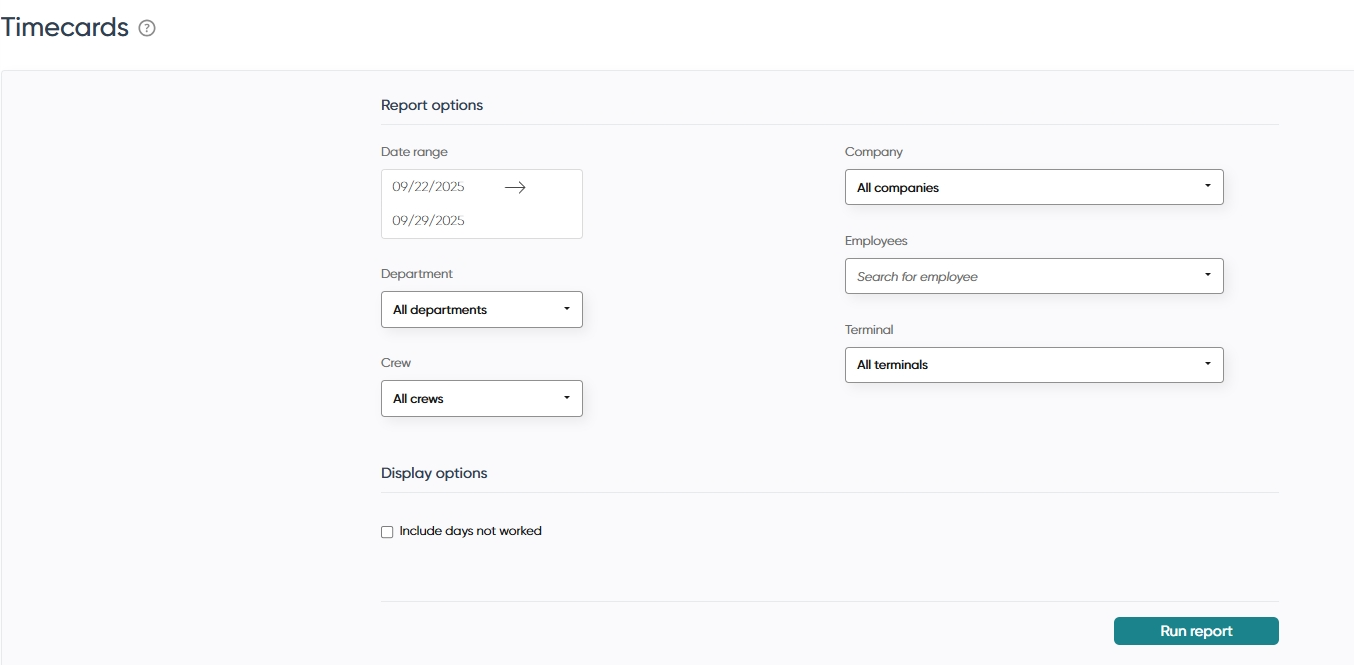
Steps:
Step 1: Access the Employee Timecards menu via Workforce Management
Navigate to the Time < Timecards section. This feature is available to users with access levels 1 through 3.
Disclaimer:
Access to features and information described in this article may vary depending on the user's role and custom permissions. Users with different access levels may see different options or have limited functionality within the page.
Step 2: Select report parameters
Choose from the following options to customize your report:
- Date Range
- Department
- Crews
- Company
- Individual Employee
- Terminals
Step 3: Choose display options
You can also select whether to:
- Include days not worked
Step 4: View the generated report
The report will display the following details:
- Day of the week
- Date
- In/Out timestamps
- Total shift hours
- Daily hours
- Cumulative shift hours
- Origin
- Department
- Company
- Worker type
Step 5: Export or navigate the report
- Click the Export button to download the report in Excel or CSV format.
- Use the Navigation buttons to move between pages.
- Click the Add Missing Punch button to manually add a time entry (available only with custom permissions).
💡 Tips
- Use a supported browser for the best experience.
- Ensure your account has the necessary permissions to access and modify timecard data.
- Time punches highlighted in blue indicate manually added entries.